
HR guide
From leave request to updated schedule.
What the employee does, what the manager approves and where the result shows up.
In short
- The employee requests leave in the app or at the Kiosk.
- The manager approves or rejects it in a few clicks.
- Approved days appear automatically in time tracking and in planning.
- The leave slip is generated automatically.
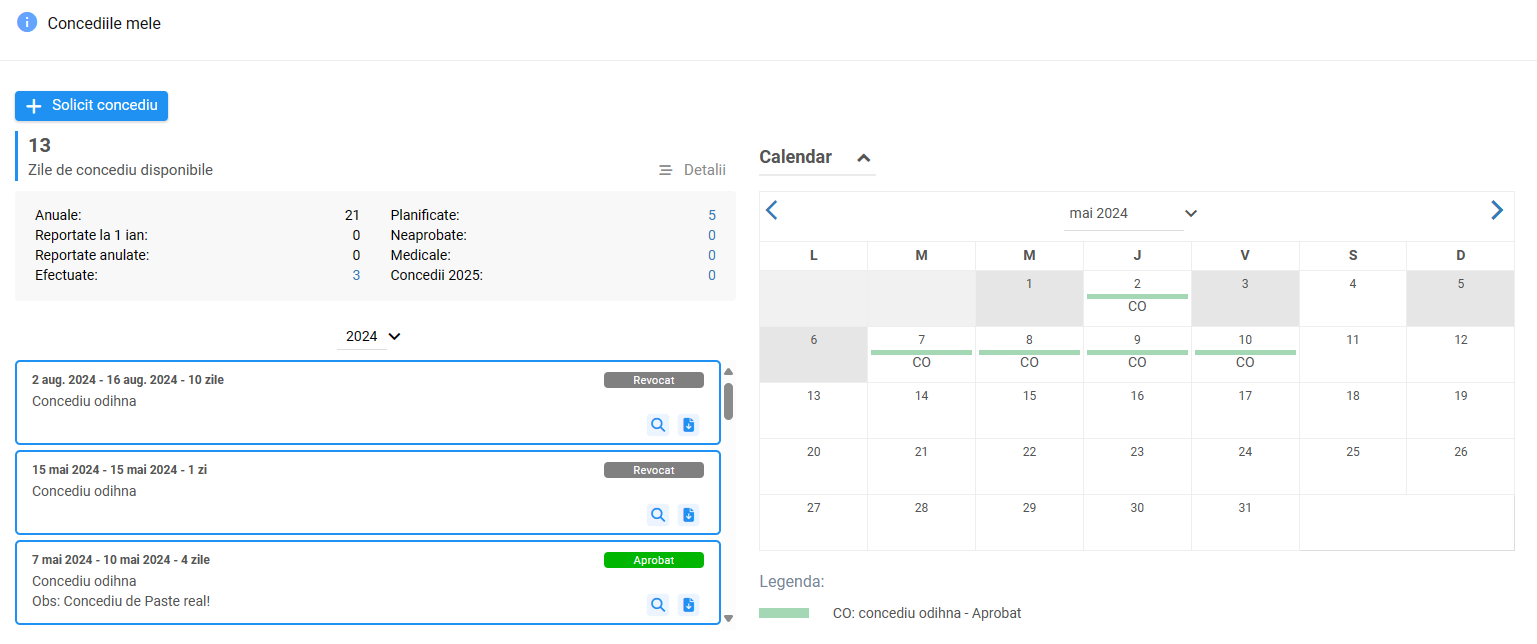
How a request flows
| Step | Who | What happens |
|---|---|---|
| 1 | Employee | Checks their balance and submits a request for the period they want |
| 2 | Manager | Sees who else is away in that period and approves or rejects |
| 3 | Platform | Generates the leave slip, notifies the employee, updates the schedule |
| 4 | Time tracking and payroll | The days appear in the attendance register and are sent with the hours worked |
Annual planning
Employees can plan their leave early in the annual calendar. The manager sees the whole team’s plan and avoids overlaps.
Business trips
Business trips follow the same request and approval flow and appear in the team overview. Details on expense claims and activity reports are configured during implementation.
The Creasoft solution
Leave and business trips, digital.
Requests, approvals and planning linked to time tracking.